Setup guide
How to Set Up Kemo IPTV on a BuzzTV Box
BuzzTV boxes have a built-in Live TV application and remote-friendly menus. You can connect with Xtream Codes, M3U or a portal depending on the account details we send.
You need the username, password and server URL we send after you subscribe. If you have not got them yet, message us and we will sort it out.
- 01
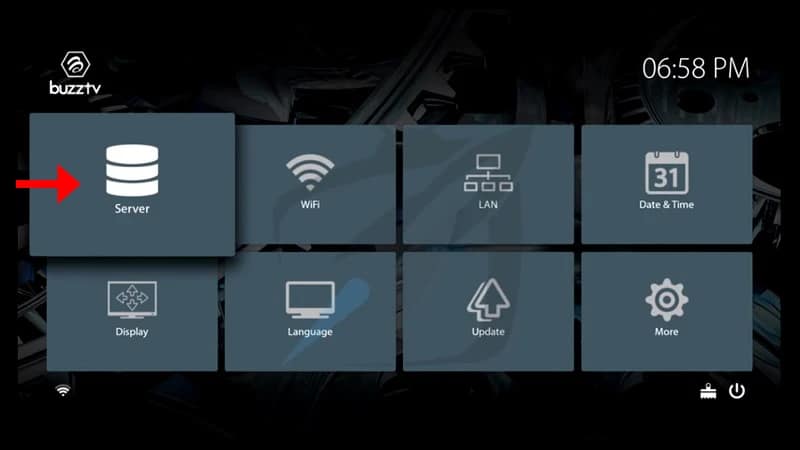
Open the Server menu
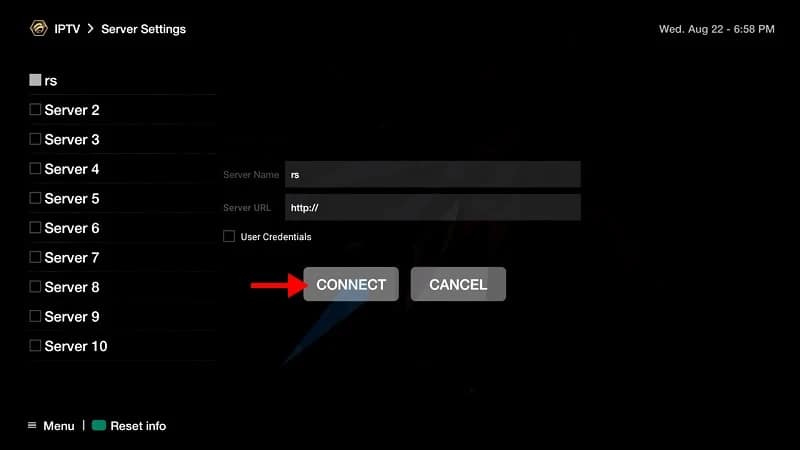
Launch Live TV from the BuzzTV home screen and open Server Settings. On newer BuzzTV 5 software, the Server tile is also available directly from the main settings screen.
- 02
Create a server profile
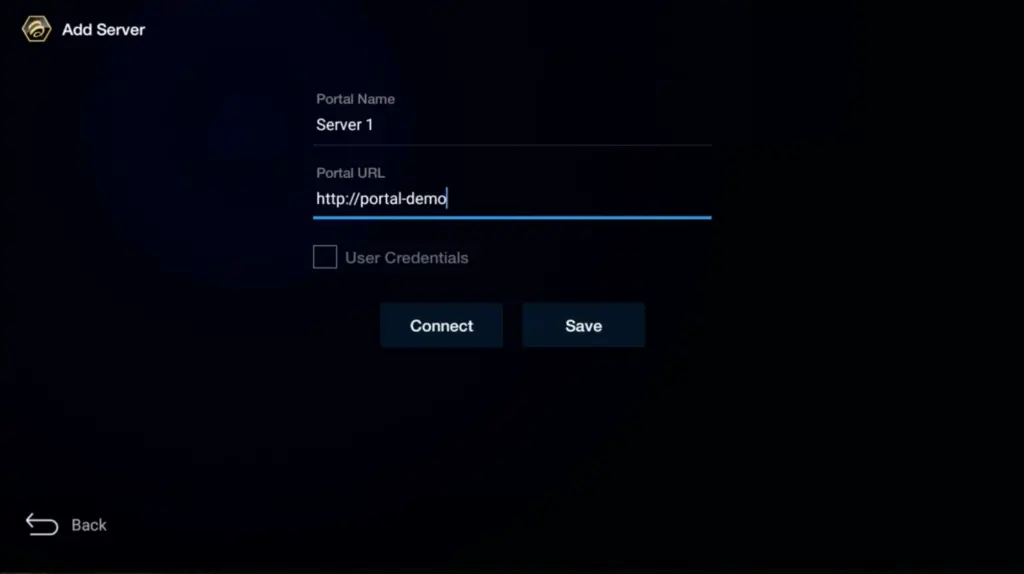
Choose Add Server and give the profile a short name such as Kemo IPTV. Select the connection format that matches the details you received rather than changing the supplied address.
- 03
Enter the login or playlist
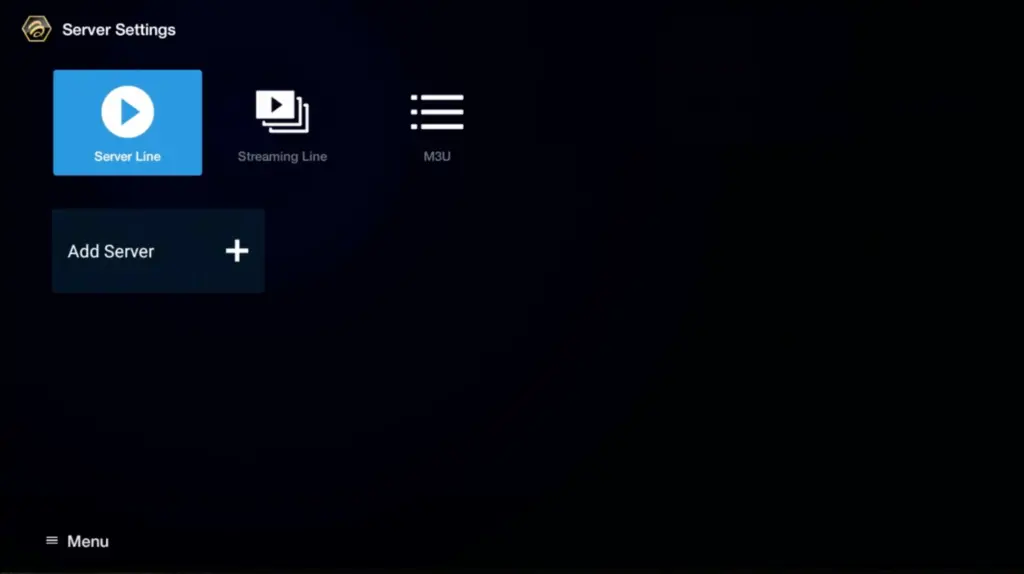
For Xtream Codes, enter the server URL, username and password in their separate fields. For M3U, paste the complete playlist URL. Check capital letters and punctuation before saving.
- 04
Connect and download the EPG
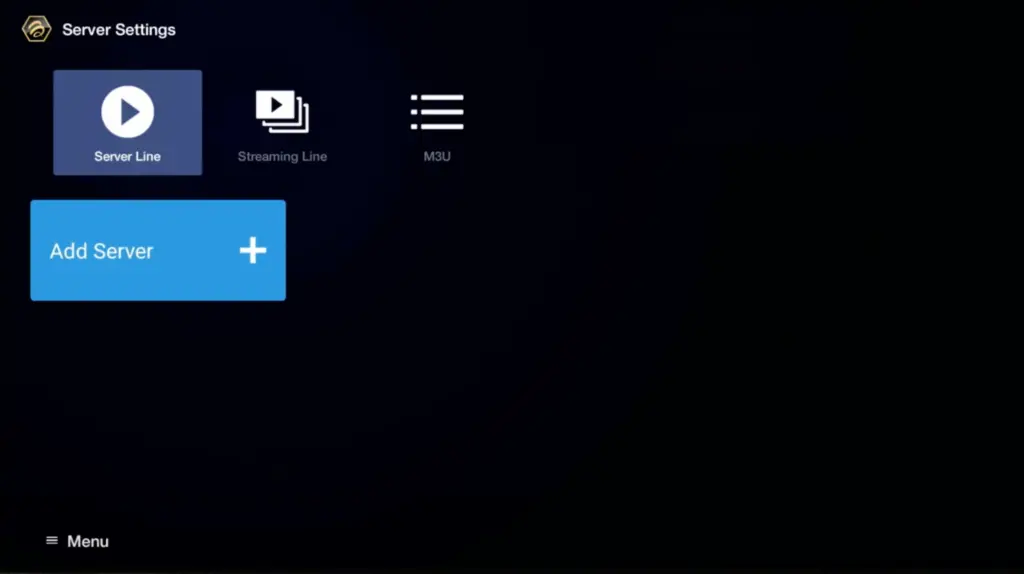
Save the profile, select Connect and let the initial sync finish. Then open the guide and run an EPG refresh if programme names have not appeared after the channel list loads.
- 05
Test the remote and playback
Open a live channel, use the guide button, switch categories and return to the home screen. This confirms that playback and remote navigation both work before you arrange favorites.
Worth knowing
- A small wireless keyboard can make long URLs and passwords easier to enter, but it is not required after setup.
- If Server Connection Failed appears, verify the box clock and network first, then recheck the server address without deleting the profile.
Still not working?
The troubleshooting page covers buffering, login failures and a blank guide in the order worth trying them. Every plan includes a 7-day money-back guarantee, so a setup we cannot fix is not a setup you are stuck with.