Setup guide
How to Set Up Kemo IPTV on iPhone, iPad and Apple TV
iOS is locked down, so you use a player from the App Store rather than sideloading. Setup is quick and the same across iPhone, iPad and Apple TV.
You need the username, password and server URL we send after you subscribe. If you have not got them yet, message us and we will sort it out.
- 01
Install a player from the App Store
Search for IPTV Smarters Pro or GSE Smart IPTV. Both are free and both accept Xtream Codes logins.
- 02
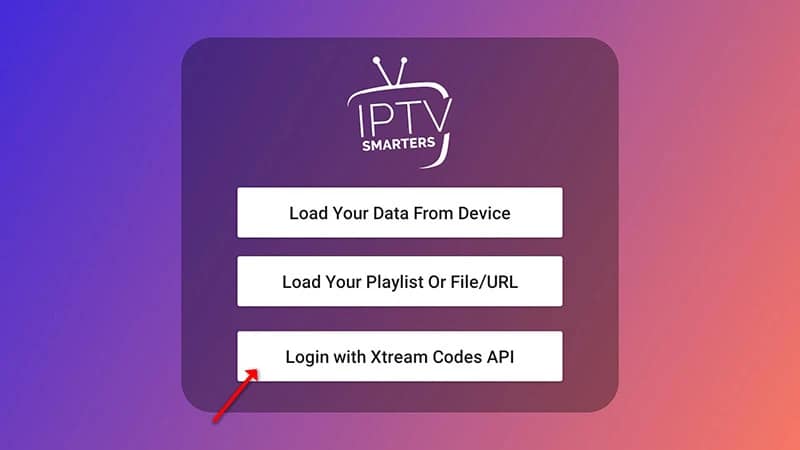
Choose the Xtream Codes login
Do not use the playlist option unless we sent you an M3U link specifically. Xtream Codes gives you the program guide as well as the channels.
- 03
Enter your details
Username, password and server URL exactly as sent, including https where shown. A single wrong character is the most common cause of a login failure.
- 04
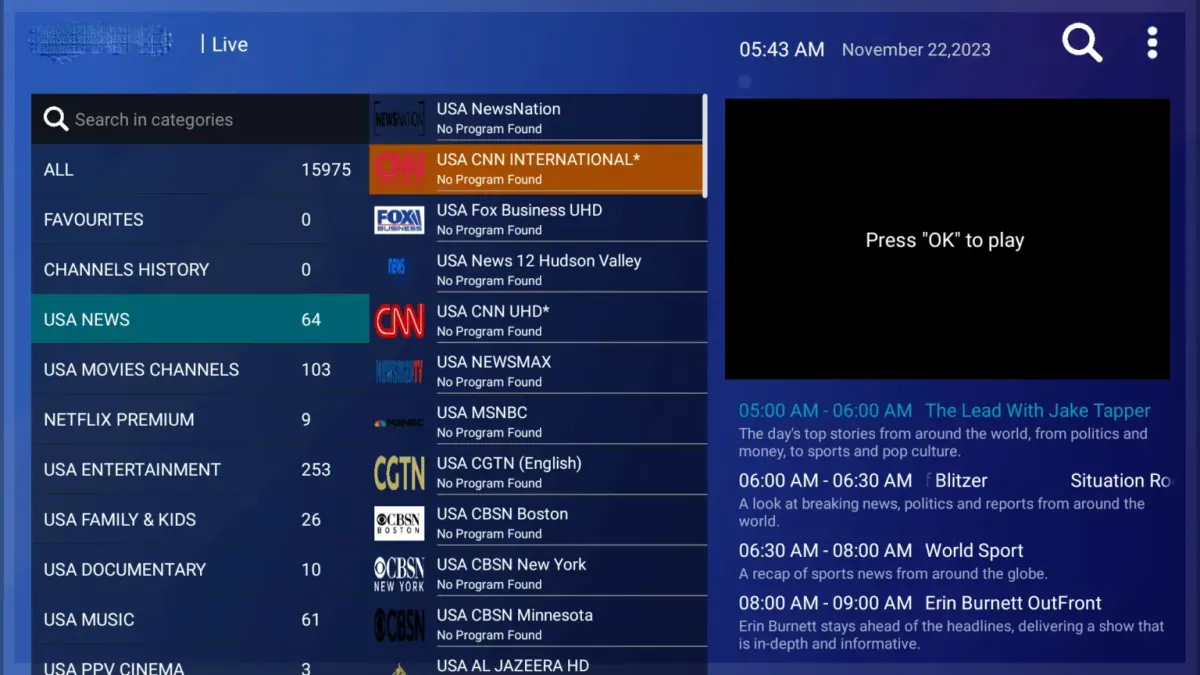
Allow the list to load
On a phone the first load is quick. On Apple TV, give it a moment longer before assuming something is wrong.
Worth knowing
- AirPlay from an iPhone to an Apple TV works, but installing the player directly on the Apple TV is more reliable.
- iOS players occasionally disappear from the App Store. If yours does, message us and we will point you at a current one.
Still not working?
The troubleshooting page covers buffering, login failures and a blank guide in the order worth trying them. Every plan includes a 7-day money-back guarantee, so a setup we cannot fix is not a setup you are stuck with.