Setup guide
Kemo IPTV Setup on MAG Box and STB Emulator
MAG receivers use a portal connection instead of the username-and-password screen found in most player apps. Keep the MAC address shown by the box and the portal URL we provide beside you before starting.
You need the username, password and server URL we send after you subscribe. If you have not got them yet, message us and we will sort it out.
- 01
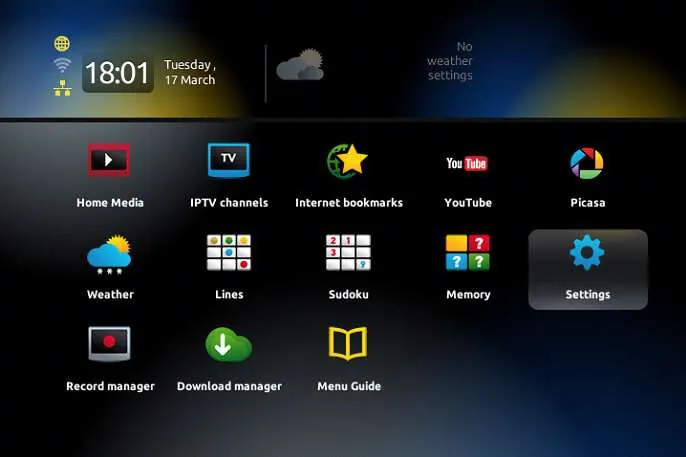
Find the MAG MAC address
Open Settings, then System Settings and Device Info. Copy the wired or active-network MAC address exactly as displayed. A single incorrect character prevents the portal from recognizing the box.
- 02
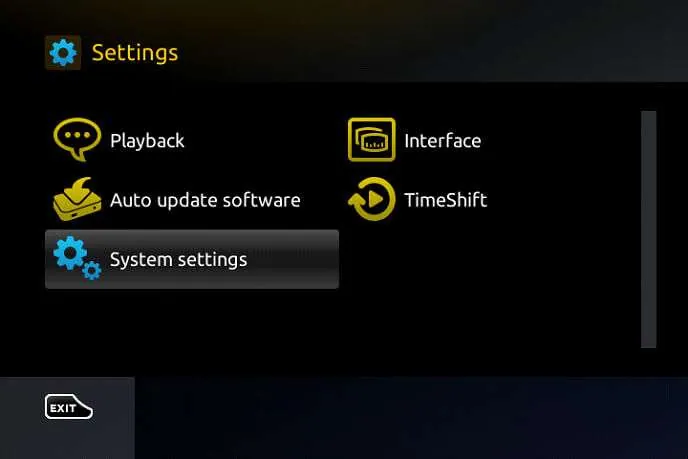
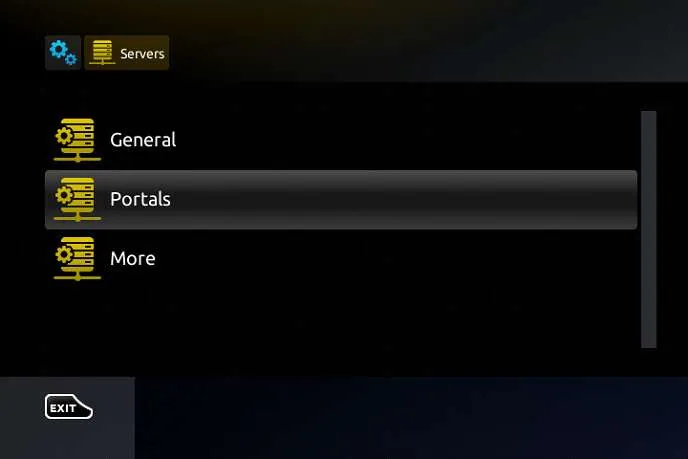
Open the portal settings
Return to System Settings, choose Servers, then Portals. Select an unused portal profile so an older address does not conflict with the new Kemo IPTV setup.
- 03
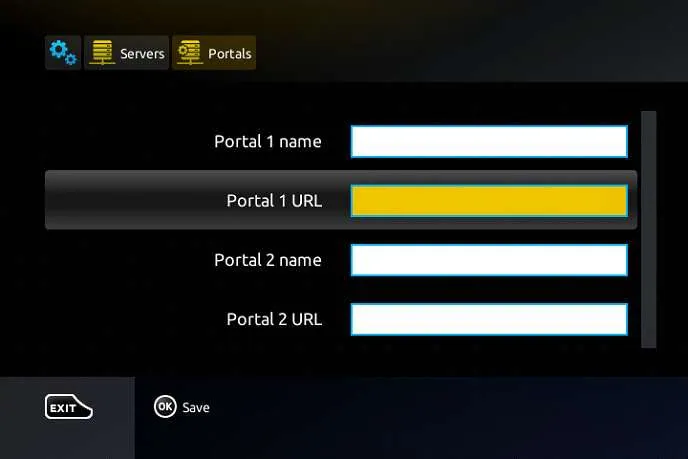
Enter the portal URL
Give the portal a recognizable name and enter the portal address exactly as we sent it, including the protocol and any final path. Do not add spaces before or after the address.
- 04
Save and restart the portal
Save the profile, return to the portal screen and restart the portal or reboot the box. The first connection may pause while the categories and program guide are downloaded.
- 05
Check live TV and the guide
Open one live channel, then move through the category and guide screens. If the portal loads but a channel does not, restart the router and box before changing the saved address.
Worth knowing
- Use the MAC address from the active connection. Switching from Wi-Fi to ethernet can expose a different address on some models.
- STB Emulator follows the same portal method, but its MAC address appears inside the app profile rather than the box settings.
Still not working?
The troubleshooting page covers buffering, login failures and a blank guide in the order worth trying them. Every plan includes a 7-day money-back guarantee, so a setup we cannot fix is not a setup you are stuck with.