Setup guide
How to Watch Kemo IPTV on Windows and Mac
On a computer you have two options: a dedicated IPTV player, or VLC with a playlist. The player gives you a program guide; VLC is simpler but plainer.
You need the username, password and server URL we send after you subscribe. If you have not got them yet, message us and we will sort it out.
- 01
Pick your approach
Install the desktop IPTV Smarters build if you want a proper channel guide. If you only want to check that the service works, VLC is faster.

- 02
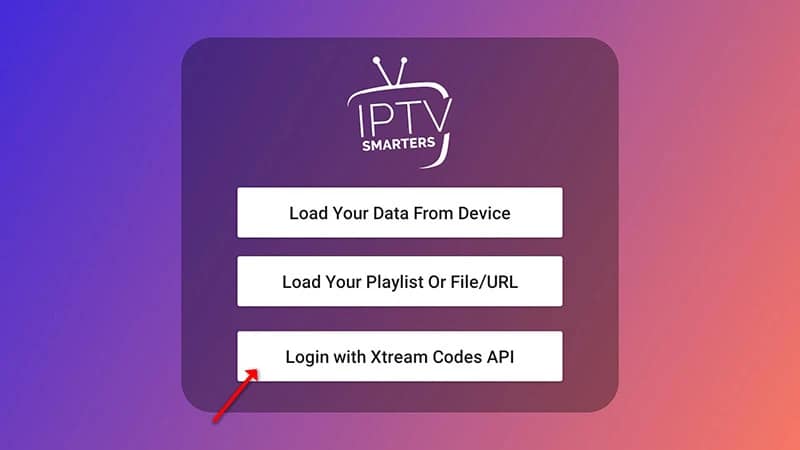
For the player: log in with Xtream Codes
Enter the username, password and server URL we sent. The interface matches the mobile app.
- 03
For VLC: open the playlist
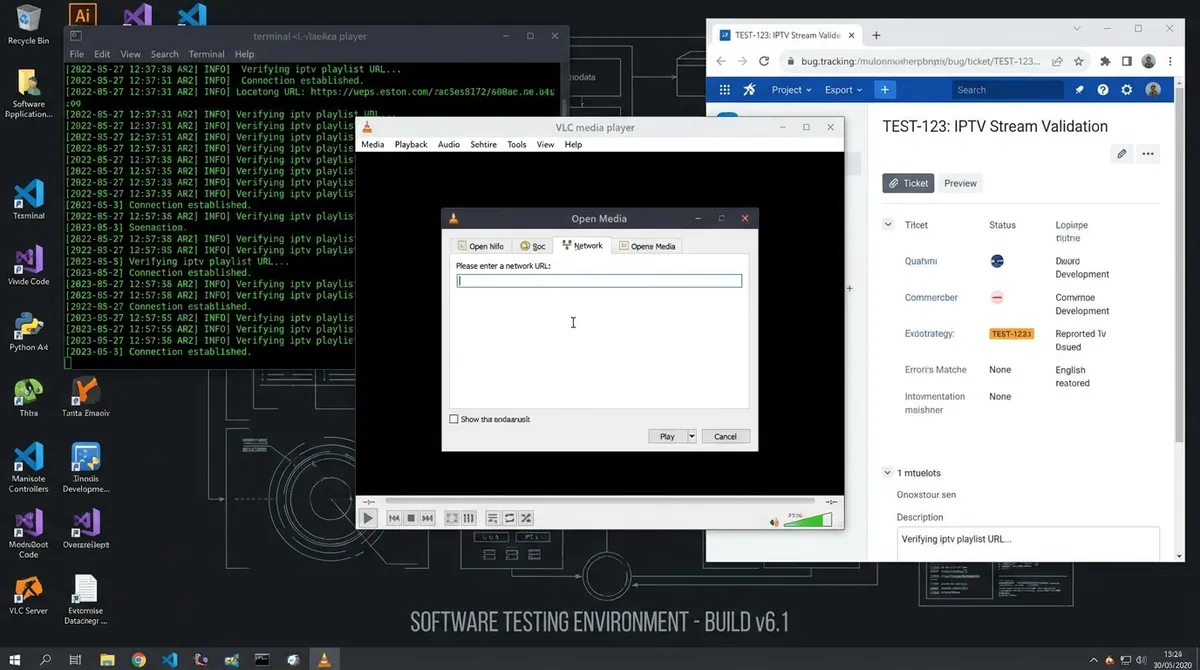
In VLC choose Media, then Open Network Stream, and paste the M3U link we sent. The channel list appears in the playlist pane.
- 04
Check playback
Play any channel. If it stutters on a laptop, close other tabs — browser video is the usual competitor for bandwidth.
Worth knowing
- VLC gives you no program guide and no favorites. It is a good test, not a good daily setup.
- On macOS, allow the app through Gatekeeper the first time it runs.
Still not working?
The troubleshooting page covers buffering, login failures and a blank guide in the order worth trying them. Every plan includes a 7-day money-back guarantee, so a setup we cannot fix is not a setup you are stuck with.