Setup guide
Kemo IPTV TiviMate Setup on Android TV
TiviMate is optimized for televisions, so this guide is for Android TV, Google TV, Nvidia Shield and Android boxes rather than touch-only phones. Installation comes directly from Google Play on supported devices.
You need the username, password and server URL we send after you subscribe. If you have not got them yet, message us and we will sort it out.
- 01
Install TiviMate from Google Play
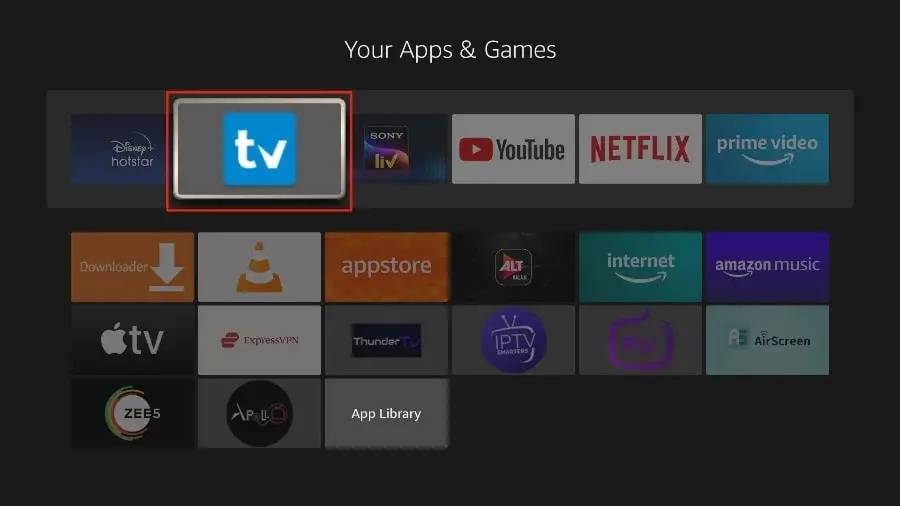
Open Play Store on the television, search for TiviMate IPTV Player and install the listing from the official developer. Launch it from the Apps row when installation finishes.
- 02
Add an Xtream Codes playlist
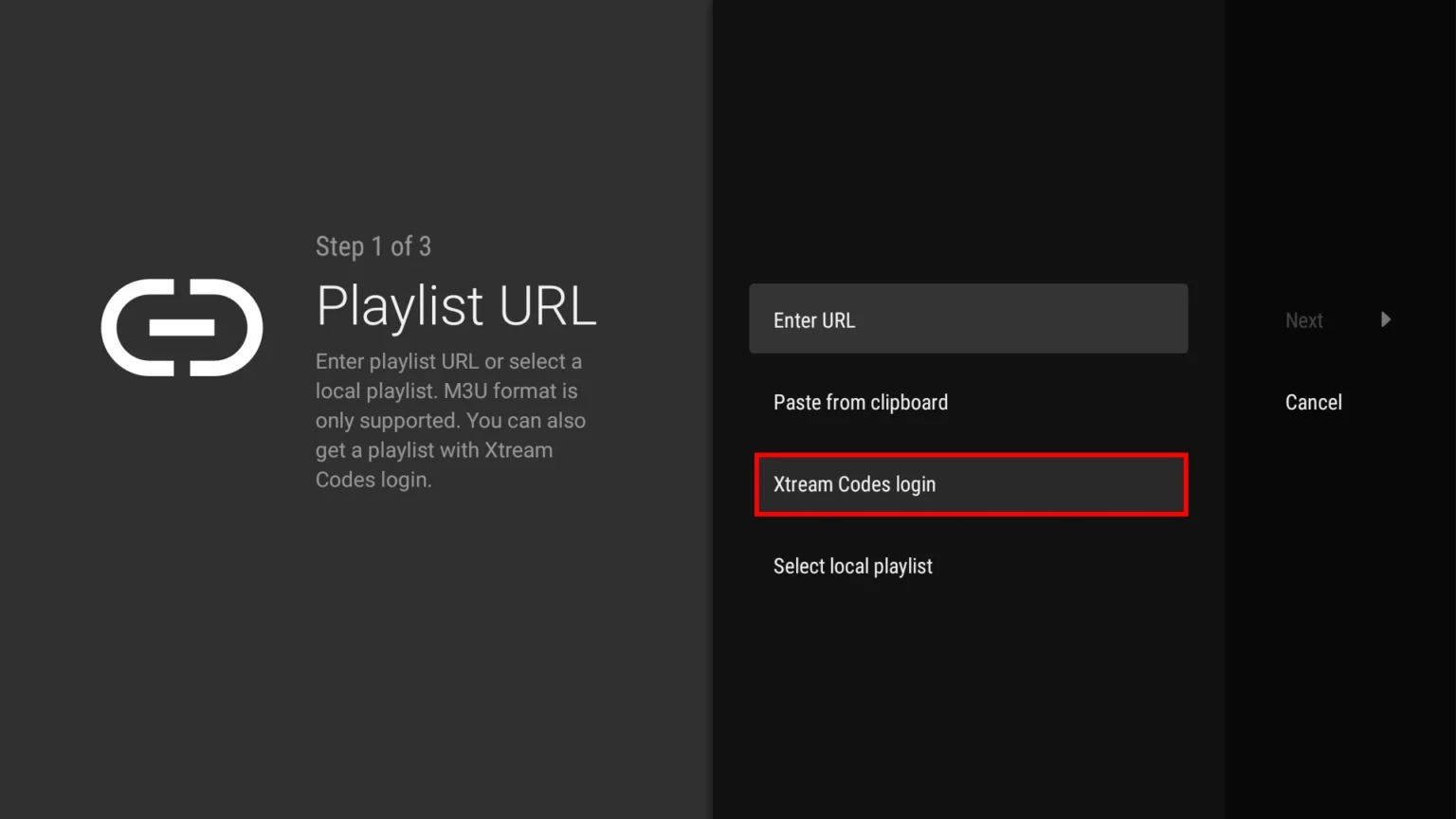
Choose Add Playlist, then Xtream Codes login. This method uses the server URL, username and password we send and normally loads the guide automatically.
- 03
Complete the login fields
Enter the three account fields carefully, choose Next and name the playlist. Leave television programmes enabled so the EPG can be matched to the channels.

- 04
Update the guide and favorites
After processing completes, open the program guide and run Update EPG from Settings if rows are empty. Hold the select button on a channel to add or remove it from Favorites.
Worth knowing
- TiviMate is designed for remote controls. On an Android phone or tablet, Smarters Pro is generally easier to operate by touch.
- A wired ethernet connection is preferable for fixed Android boxes, especially when the Wi-Fi signal must cross several rooms.
Still not working?
The troubleshooting page covers buffering, login failures and a blank guide in the order worth trying them. Every plan includes a 7-day money-back guarantee, so a setup we cannot fix is not a setup you are stuck with.