Setup guide
Kemo IPTV IBO Player Setup for Samsung and LG
IBO Player is available on many Samsung Tizen and LG webOS televisions. Playlist entry happens through the player's website, which is easier than typing a long M3U address with a television remote.
You need the username, password and server URL we send after you subscribe. If you have not got them yet, message us and we will sort it out.
- 01
Install IBO Player from the TV store
Open Samsung Apps or the LG Content Store and search for IBO Player. App availability depends on television model, year and store region, so use the exact listing your TV offers.

- 02
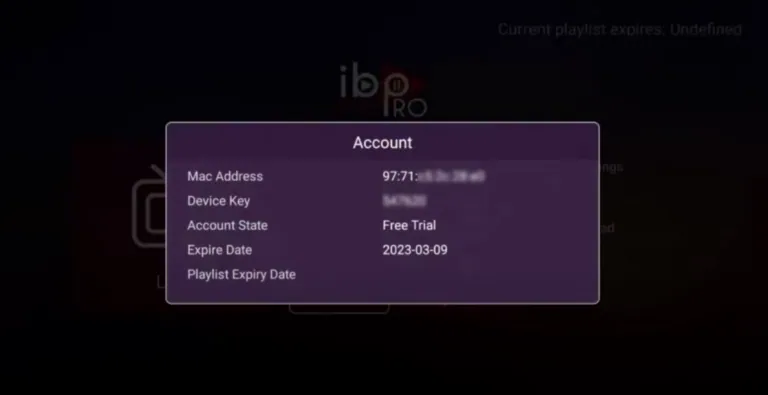
Open the device-information screen
Launch the app and copy its MAC address and device key. Keep the TV on this screen so you can compare every character while registering it from another device.
- 03
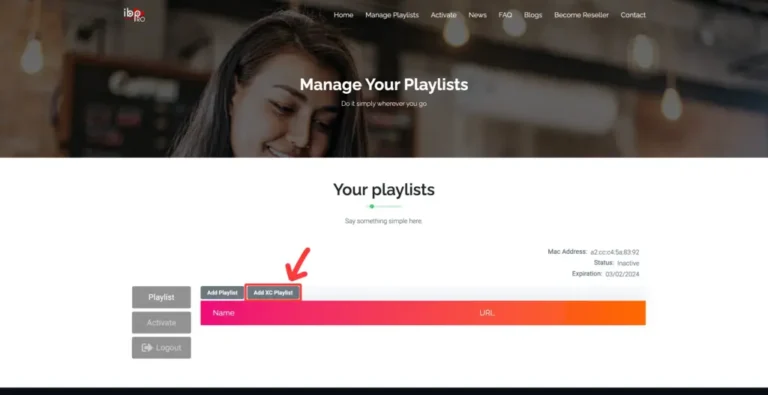
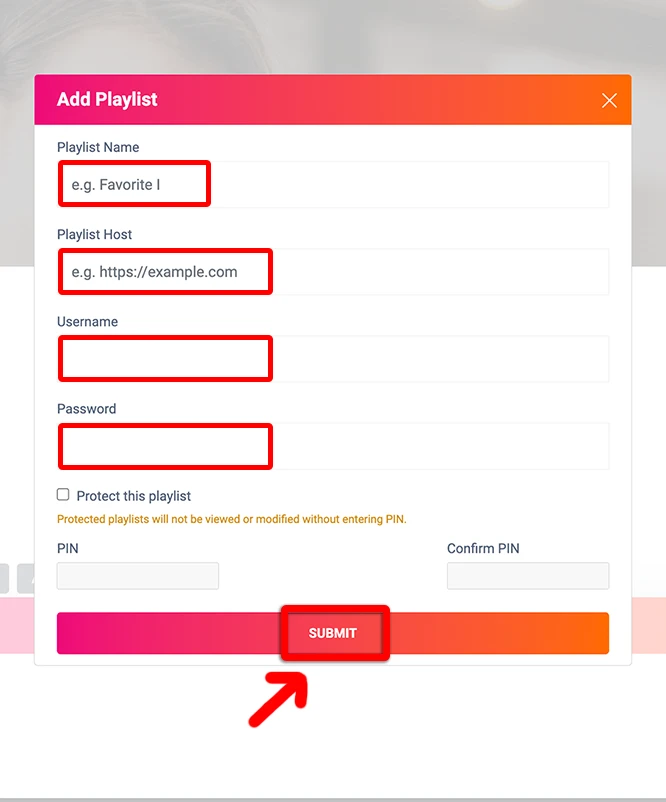
Register the playlist online
Use a phone or computer to visit the official IBO playlist portal. Sign in with the displayed identifiers, create a playlist name and paste the M3U URL we supplied.
- 04
Reload the app and test
Return to the TV and select Reload Playlist or restart the application. Open Live TV, confirm that the EPG is populated and test one channel with the television remote.
Worth knowing
- If IBO Player does not appear in the store, the television model or region may not support it; use another listed player or an HDMI streaming device.
- The app developer controls IBO Player licensing. Purchasing or activating that player does not replace a Kemo IPTV subscription.
Still not working?
The troubleshooting page covers buffering, login failures and a blank guide in the order worth trying them. Every plan includes a 7-day money-back guarantee, so a setup we cannot fix is not a setup you are stuck with.