Setup guide
Kemo IPTV Smarters Setup for Samsung and LG
Smarters provides direct on-screen login on supported Samsung and LG televisions. Unlike a portal-managed player, you enter the Kemo IPTV server URL, username and password inside the TV app.
You need the username, password and server URL we send after you subscribe. If you have not got them yet, message us and we will sort it out.
- 01
Check the television app store
Search Samsung Apps or the LG Content Store for IPTV Smarters or Smarters Player. The available name and version vary by model and region; install only the listing provided through the TV store.

- 02
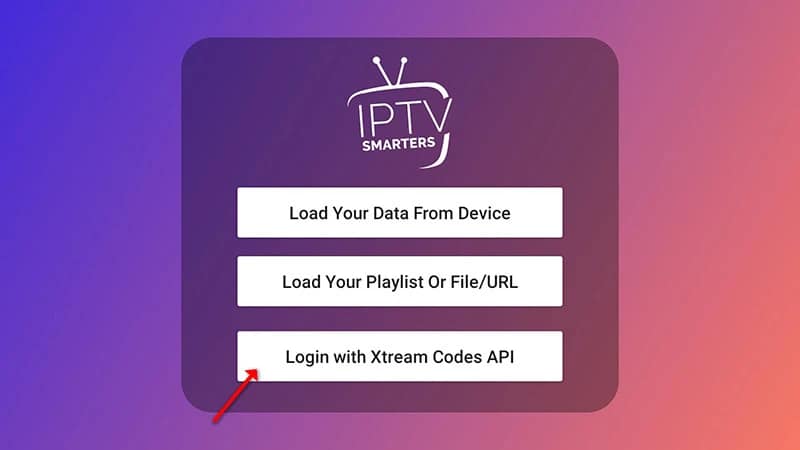
Choose Xtream Codes login
Open the installed player, accept its terms and choose Login with Xtream Codes API. Do not choose Load Playlist unless you received a single M3U URL instead of separate credentials.
- 03
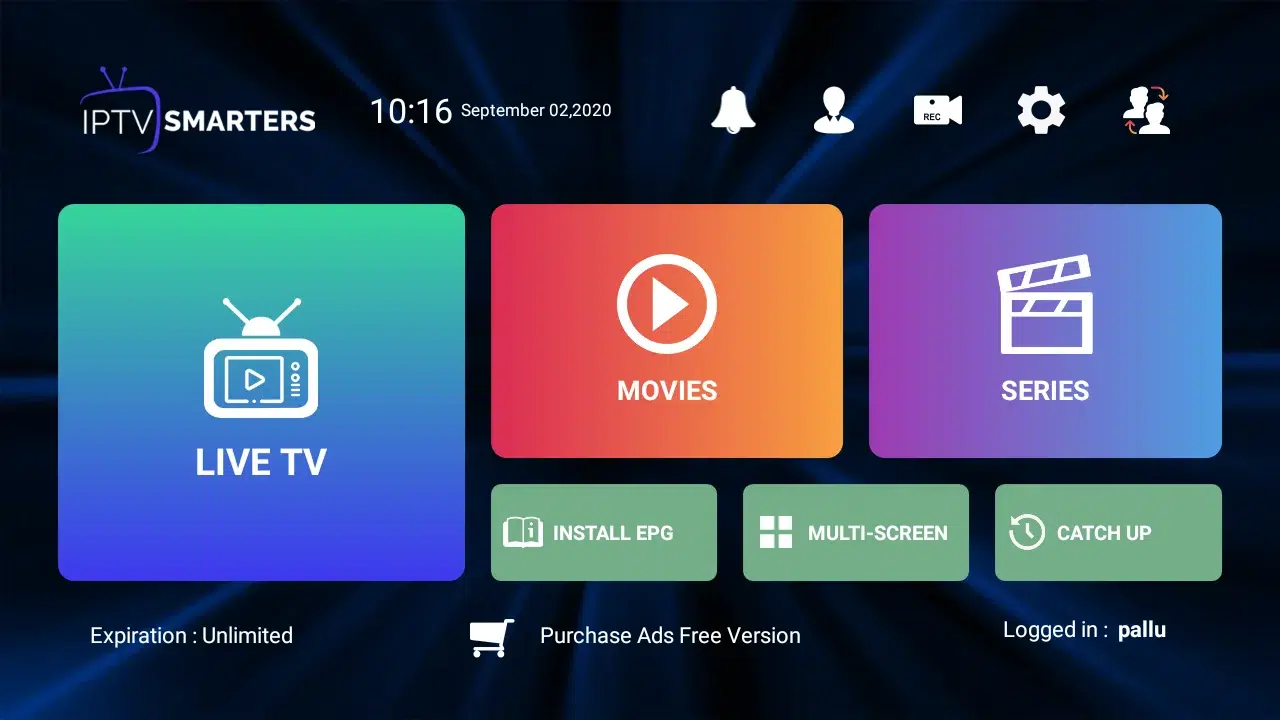
Enter the Kemo IPTV details
Add a profile name, server address, username and password. Use the remote's show-password option to review each field before submitting, especially zeros, capital letters and punctuation.
- 04
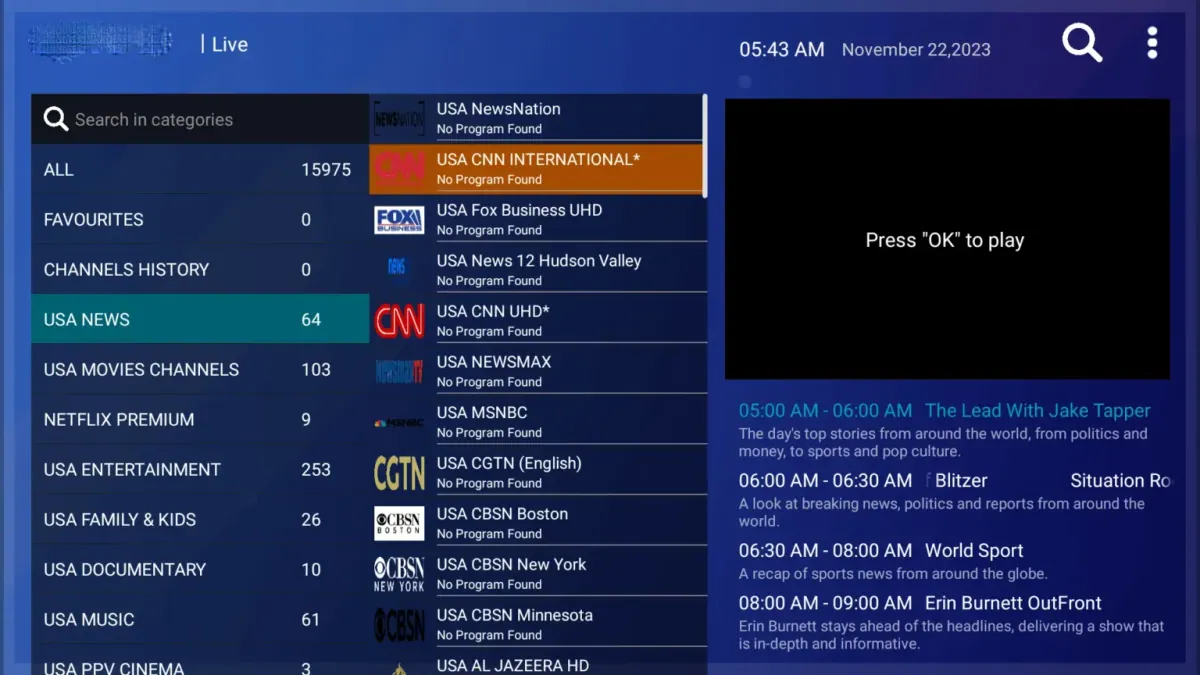
Synchronize channels and the EPG
Leave the app open while it downloads categories and program data. Then open Live TV and refresh the guide from Settings if channel names appear without current programme information.
Worth knowing
- Older televisions can have limited memory. Closing unused apps and power-cycling the TV can help when the channel list loads slowly.
- When no compatible player is available in the store, a Firestick or Android TV device is usually simpler than attempting unsupported sideloading on the television.
Still not working?
The troubleshooting page covers buffering, login failures and a blank guide in the order worth trying them. Every plan includes a 7-day money-back guarantee, so a setup we cannot fix is not a setup you are stuck with.