Setup guide
Kemo IPTV IBO Player Setup on Firestick
IBO Player Pro activates playlists through its web portal. The app displays a MAC address and device key on first launch; you use those identifiers to add the Kemo IPTV playlist from a phone or computer.
You need the username, password and server URL we send after you subscribe. If you have not got them yet, message us and we will sort it out.
- 01
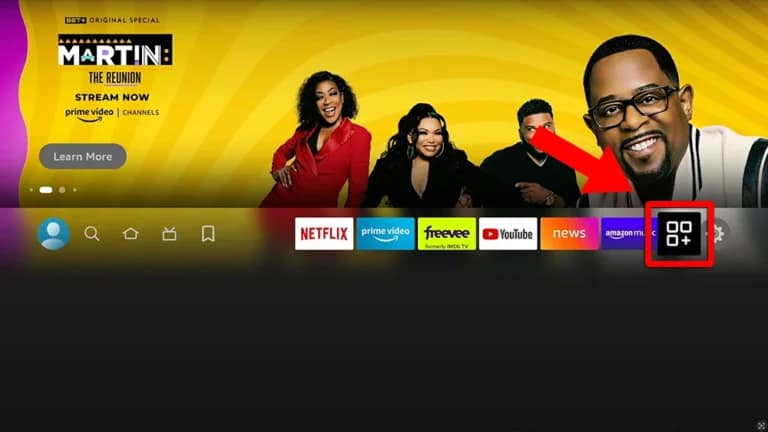
Install IBO Player Pro
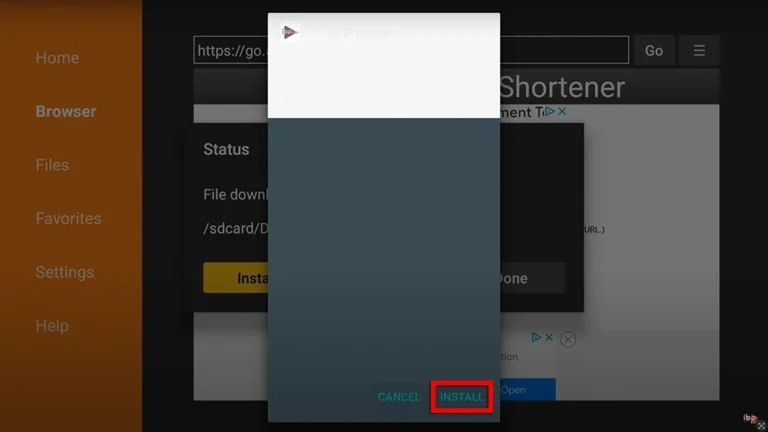
Check the Amazon Appstore for IBO Player Pro. If it is not offered in your region, install the current Fire TV package from the player's official source through Downloader.
- 02
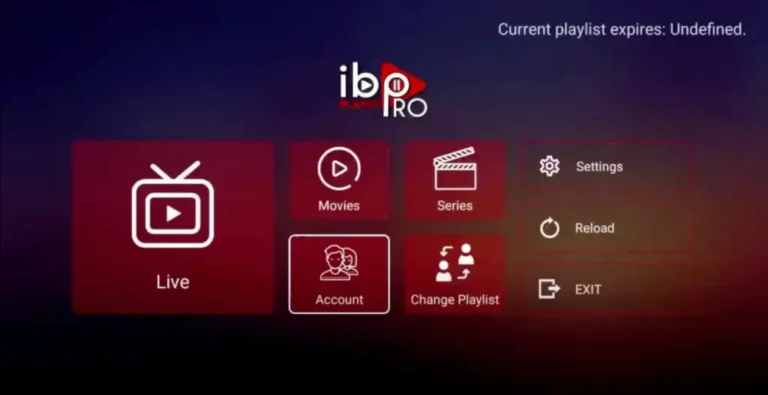
Launch the player
Open the app after installation and allow it to finish its first start. Do not enter your subscription username in the MAC or Device Key field—those values belong to the player itself.
- 03
Record the MAC address and device key
Copy both identifiers exactly as shown on the television. Leave the screen open while you use a second device to visit the official IBO playlist-management portal.
- 04
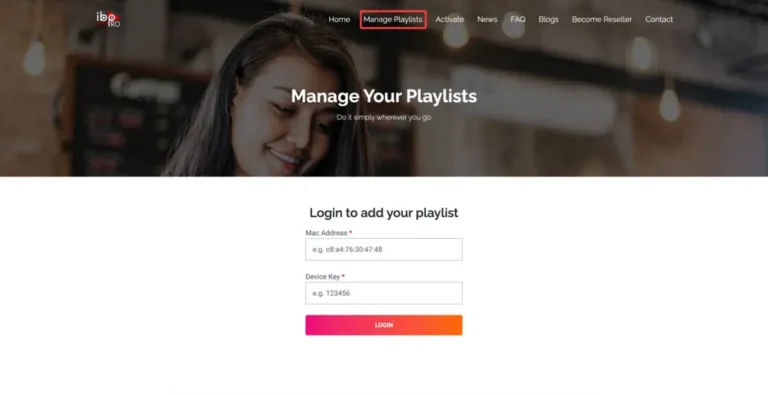
Add the Kemo IPTV playlist
On the portal, sign in with the displayed MAC address and device key. Choose Add Playlist, give it a recognizable name and paste the M3U address we sent you.
- 05
Reload the application
Return to the Firestick and select Reload or restart IBO Player Pro. The new playlist should appear after synchronization; open a channel and the guide to confirm both loaded.
Worth knowing
- The IBO Player license is sold by the app developer and is separate from your Kemo IPTV plan.
- If the portal rejects the identifiers, check zero versus the letter O and remove any spaces copied with the device key.
Still not working?
The troubleshooting page covers buffering, login failures and a blank guide in the order worth trying them. Every plan includes a 7-day money-back guarantee, so a setup we cannot fix is not a setup you are stuck with.